Signalwise Picks
Browse
Wired networking

5-Port vs 8-Port 2.5GbE Switch: Count the Uplink First

Current retailer option

TP-Link TL-SG105-M2 5-Port 2.5G Switch

Open the named TP-Link TL-SG105-M2 5-Port 2.5G Switch listing to compare the live price, availability, delivery, seller, and returns.

Choose five or eight multi-gig ports by counting the router uplink, NAS, desktops, Wi-Fi 7 access points, mesh nodes, docks, media devices, and spare capacity.

Prepared by the Signalwise Picks editorial deskUpdated July 21, 2026

Quick answer

The practical answer

A five-port switch commonly leaves four downstream ports; an eight-port switch leaves seven. If the topology uses another switch link, count that link too.

Related search answers

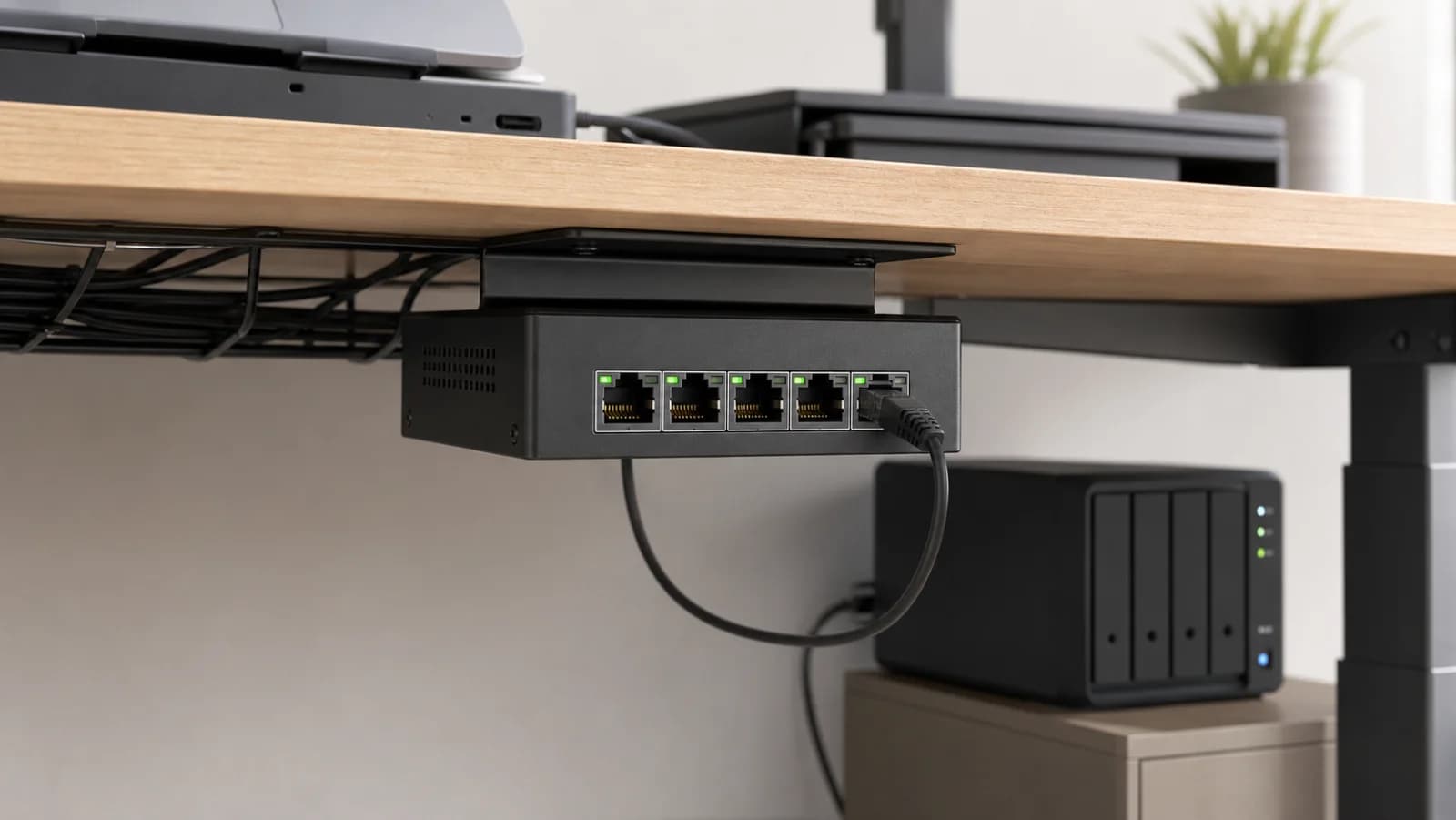
Generic five-port fanless Ethernet switch mounted under a home-office desk near a NAS
Editorial image for visual context; device appearance and configuration can vary by model and region.

Subtract the upstream connection first

A five-port switch commonly leaves four downstream ports; an eight-port switch leaves seven. If the topology uses another switch link, count that link too.

Name every fixed device

Write down the router, NAS, workstation, access point, mesh node, dock, TV, console, recorder, and room feed. Mark which devices actually need 2.5GbE.

A spare port is useful, unused speed is not

One or two spare ports simplify troubleshooting and a known upgrade. Buying eight multi-gig ports for three permanent devices is harder to justify when a gigabit branch can serve printers and hubs.

Avoid casual daisy chains

A second switch adds another power supply, uplink, cable bundle, and failure point. If the first switch is full on day one, eight ports are usually cleaner.

Side-by-side checks

Five-port versus eight-port planning

CheckFive-port switchEight-port switchWhat to verify
Typical usable ports4 after one upstream link7 after one upstream linkCount the topology, not the box
Best fitRouter, NAS, desktop, APSeveral rooms, APs, mediaLeave one or two spares
PlacementSmaller desk or shelfLarger shelf and cable bundleMeasure plugs and bend radius
Upgrade riskFills soonerHigher cost and powerDo not buy unused speed

Primary sources

References used for this guide

Buying framework

What to check before you choose

Checklist

  • Map the modem or ONT location, office desk, TV area, and any rooms that need wired stability.
  • Check WAN/LAN port speeds, wired backhaul options, and whether your internet plan actually needs Wi-Fi 7.
  • Count fixed devices separately from phones, tablets, and smart-home gear before buying a bigger system.

Common mistakes

  • Buying the fastest advertised Wi-Fi number while leaving the router in a bad location.
  • Ignoring Ethernet paths that could make mesh nodes, TVs, consoles, or office desks more stable.
  • Choosing a premium router before checking client device support, subscription features, and return path.

Category checks

  • A cheap switch is fine for simple rooms, but port speed and management features matter for NAS or office setups.
  • Cable category should match run length and future speed needs.
  • Adapters and hubs should be checked against laptop charging, display, and Ethernet needs together.

Decision rule

Spend more when coverage, wired backhaul, multi-gig ports, or device count solves a known bottleneck; spend less when placement or one Ethernet run fixes the problem first.

Related guide

When Is a 2.5GbE Switch Worth It?

Map internet, NAS, desktop, access-point, adapter, cable, and uplink speeds before replacing a working gigabit switch.

Related guide

2.5GbE Home Network Upgrade Checklist: Router, Switch, NAS and Cables

Audit every link from the ISP handoff to the mesh nodes, switch, NAS, desktop, adapter, and cable before paying for multi-gig hardware.

Related guide

2.5G vs 10G Switch for a Home NAS

Most homes should fix the 2.5GbE path first; 10G makes sense when the NAS, desktop, cabling, noise, and budget all support it.

Related guide

2.5GbE Switch for NAS and Wi-Fi 7 Mesh: Port Budget Checklist

Map the modem or ONT, router, switch, NAS, workstation, Wi-Fi 7 access point, mesh backhaul, adapters, and slower side devices before buying.

Related product guide

TP-Link TL-SG105-M2 5-Port 2.5G Switch

A version-aware guide to the fanless TL-SG105-M2, covering its five 100M/1G/2.5G ports, 25Gbps switching capacity, 12.11W listed maximum draw, port budget, and unmanaged limits.

Related product guide

NETGEAR MS305 5-Port 2.5G Switch

A compact-switch guide to MS305, with five 100M/1G/2.5G ports, fanless metal construction, 9.24W listed maximum draw, 9,720-byte jumbo frames, mounting kit, and warranty-region checks.

Related product guide

TRENDnet TEG-S350 5-Port 2.5G Switch

A compact 2.5GbE switch guide for desks, router shelves, and small NAS corners where five multi-gig ports are enough.

Related product guide

TRENDnet TEG-S380 8-Port 2.5G Switch

A version-aware guide to TRENDnet's unmanaged eight-port 2.5GbE switch, including fanless operation, Cat5e-or-better cabling, its 40Gbps official switching specification, and the hardware-version check the Amazon title does not make obvious.

Related comparison

Best Fanless 2.5GbE Switches for a Home NAS and Wi-Fi 7 Mesh

Compare TP-Link, NETGEAR, and TRENDnet 2.5GbE switches by five-versus-eight-port fit, enclosure size, management limits, power, mounting, version risk, and usable network path.

Related comparison

TP-Link TL-SG105-M2 vs NETGEAR MS305 vs TRENDnet TEG-S350

Compare three fanless five-port 2.5GbE switches by size, power, official documentation, mounting, hardware-version risk, warranty path, and when eight ports are better.

Related comparison

Best 2.5G Home Network Upgrades Before Buying a New Router

Compare compact 2.5G switches, USB-C adapters, cable modems, and MoCA before blaming the router for every speed problem.

5-Port vs 8-Port 2.5GbE Switch: Count the Uplink First